


Project expense tracking, from budget to actuals
Subcontractors, travel, licenses — expenses can swing a project's margin as hard as hours do, and they're usually tracked with a fraction of the care. Operating plans expenses into the budget, tracks them as they land, and shows what they do to the margin.


From budget line to dated plan
The expense budget sits inside the project budget, then gets planned out: which expense, which vendor, landing on which date.

Billable or not, nothing slips
Flag each expense as billable when you plan it, and the billable ones are ready for invoicing instead of forgotten.

Planned vs actual on margin
Every expense rolls into the project's full margin, so you catch the overrun while it's still a line item.
Expense budgets
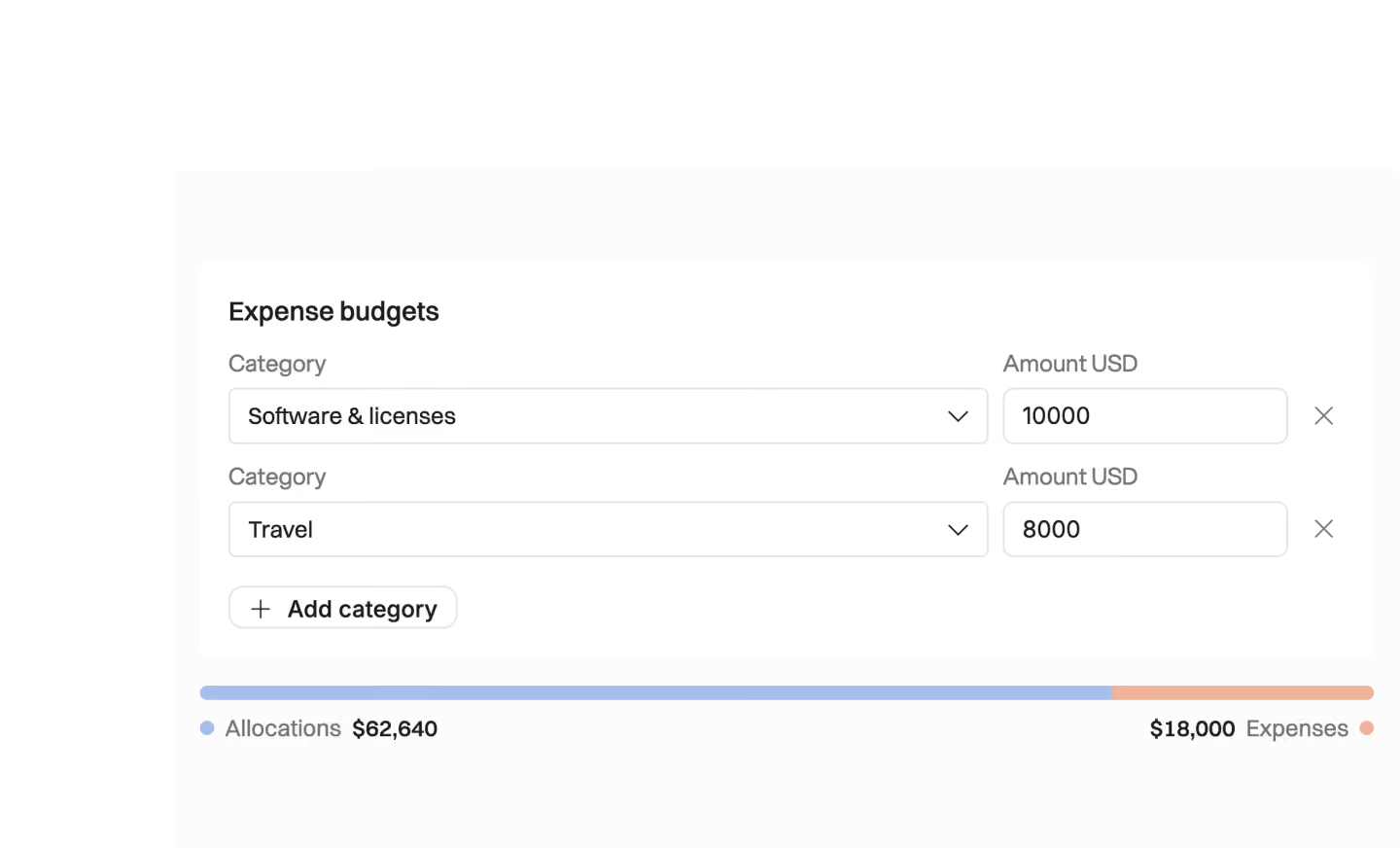
Most project budgets treat expenses as one round number that nobody revisits until it's blown. In Operating, the expense budget is part of the project budget — and then you plan it out: which expense, likely landing on which date, from which vendor.
Expense budget set as part of the full project budget
Each planned expense dated — see when costs will land
Vendors, categories, and details on every line





Billable and non-billable expenses
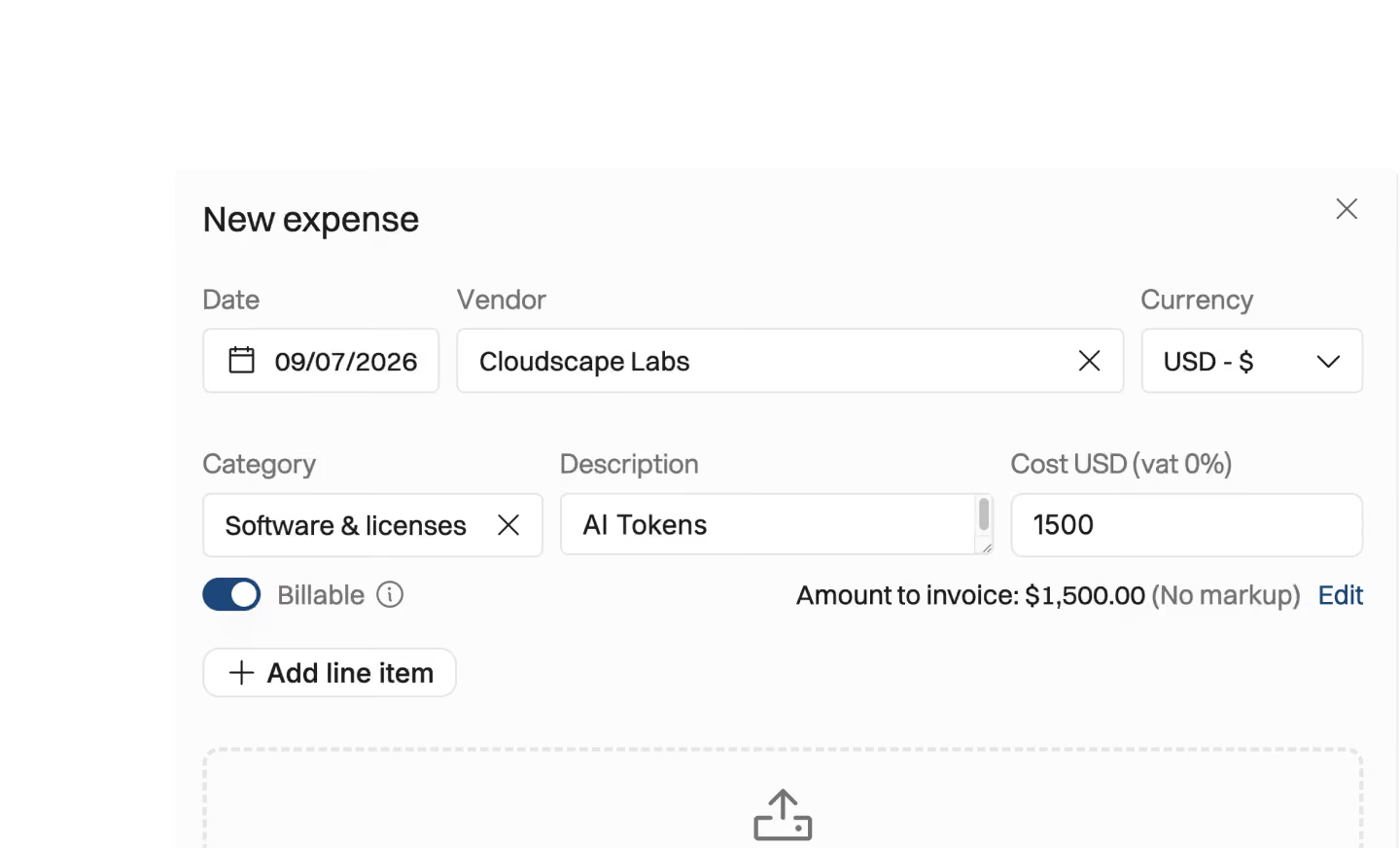
Some expenses are yours to carry; some belong on the client's invoice. Flag each one as billable or not when you plan it, log the actuals as they arrive, and the billable ones are ready for invoicing instead of forgotten in a spreadsheet.
Billable / non-billable flag per expense
Billable expenses increase the revenue and costs of the project
Non-billable expenses affect your margin
Billable expenses ready for the invoice — nothing left unbilled
Planned vs actual expenses
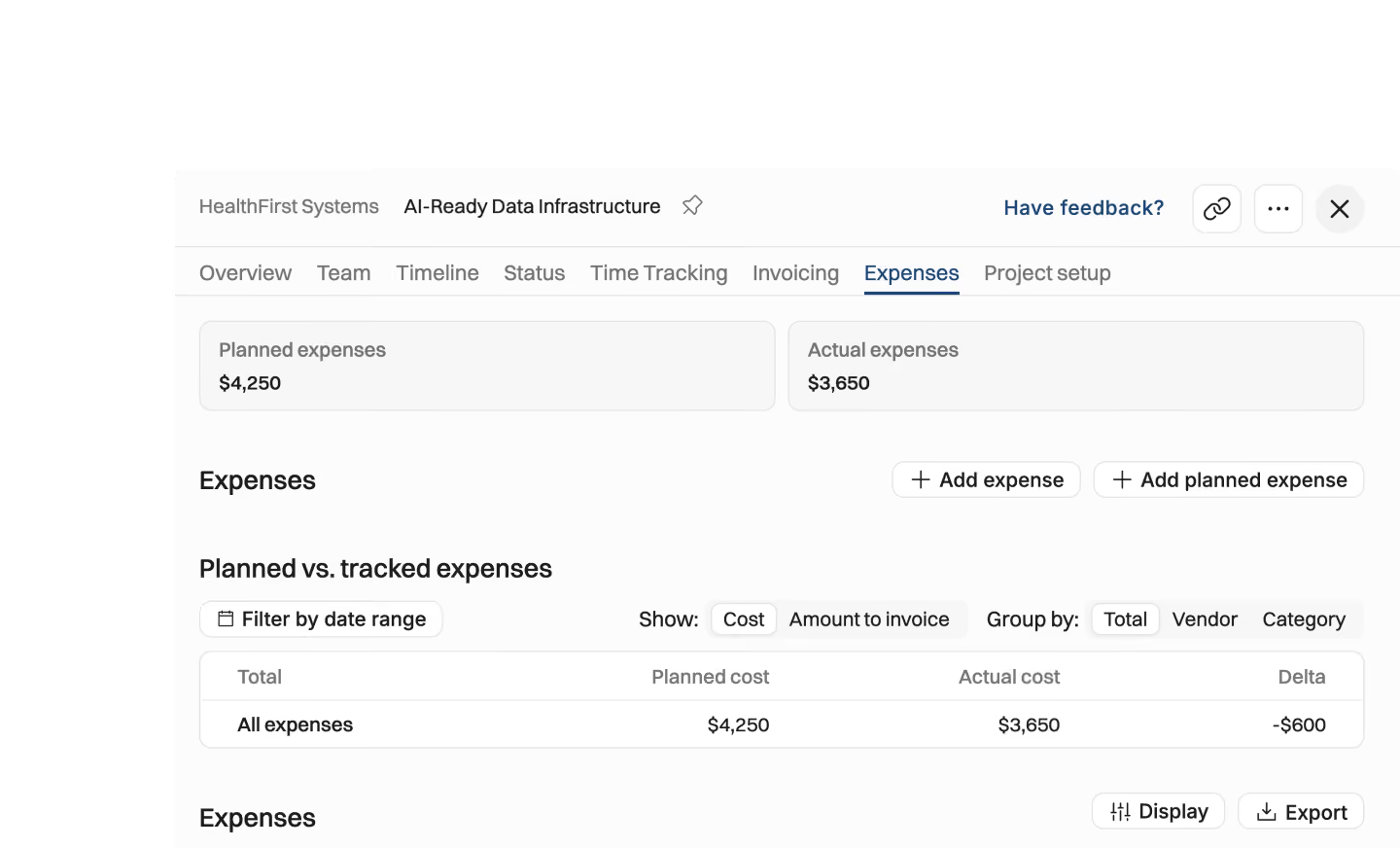
Every expense, planned or actual, rolls into the project's full margin. Compare what you planned against what actually landed, watch the effect on the burn-up, and catch the overrun while it's a line item — not a post-mortem.
Planned vs actual expenses, side by side per project
Every expense reflected in the full project margin
Expenses flow into the project forecast and burn-up
Why plan expenses date by date?
Expenses can swing a project's margin as hard as hours do.

Most project budgets treat expenses as one round number that nobody revisits until it's blown. Planning each expense — which vendor, which category, likely landing on which date — turns that round number into something you can actually track against as the project runs.
Expenses are usually tracked with a fraction of the care hours get, and that is exactly why they are the ones that end up surprising you.
Some expenses are yours to carry; some belong on the client's invoice. Flagging each one as billable or not when you plan it means the billable ones are ready for invoicing as the actuals arrive, instead of sitting forgotten in a spreadsheet until nobody bills them.
Every expense, planned or actual, rolls into the project's full margin. Comparing what you planned against what actually landed, and watching the effect on the burn-up, is how you catch an overrun while it is still a line item you can do something about.


Get the Operating Routine for resource planning
A weekly routine for staffing and capacity, written by people who ran it in their own firms. It gives your resource planning meeting a fixed agenda and a short list of numbers to check. Get the guide.
Thank you!
Get the Staffing Routine by clicking below.
Download guide
